How to Create a Table in WordPress?
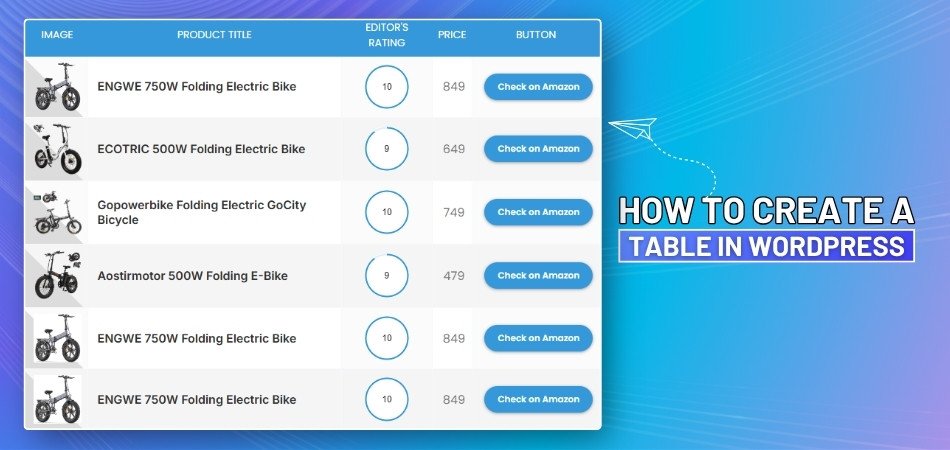
Tables in WordPress are a powerful tool for presenting information clearly and concisely. They help organize data, making it easy to read and understand for your visitors. If you’re new to WordPress, you might wonder how to create a table in WordPress?
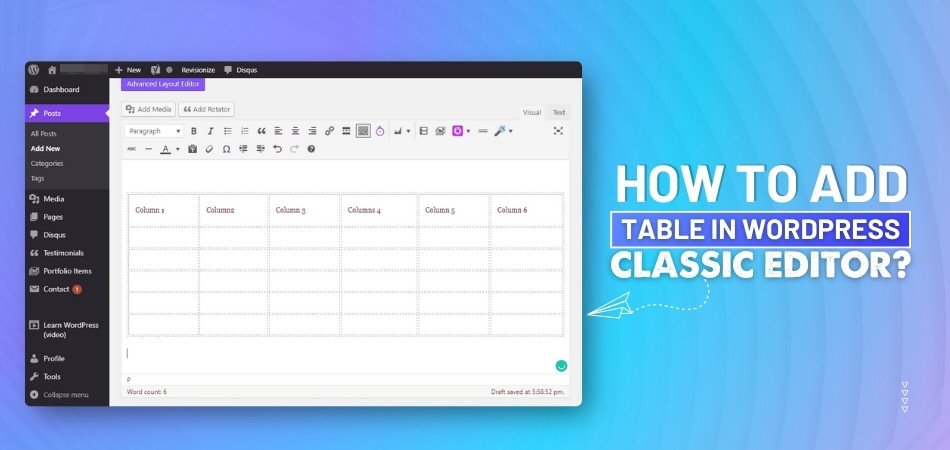
To create a table in WordPress, open your post or page in the editor, click the "+" icon, and select the "Table" block. Choose the number of rows and columns you want to start with. You can also use the One Click Table tool, which comes with ready-made templates and more design options. This tool saves time and lets you customize your table more easily.
Want to know more about adding and changing tables in WordPress? Keep reading this article to explore every simple step and helpful feature you can use to make your tables look great and work well on your website.
How to Create a Table in WordPress?
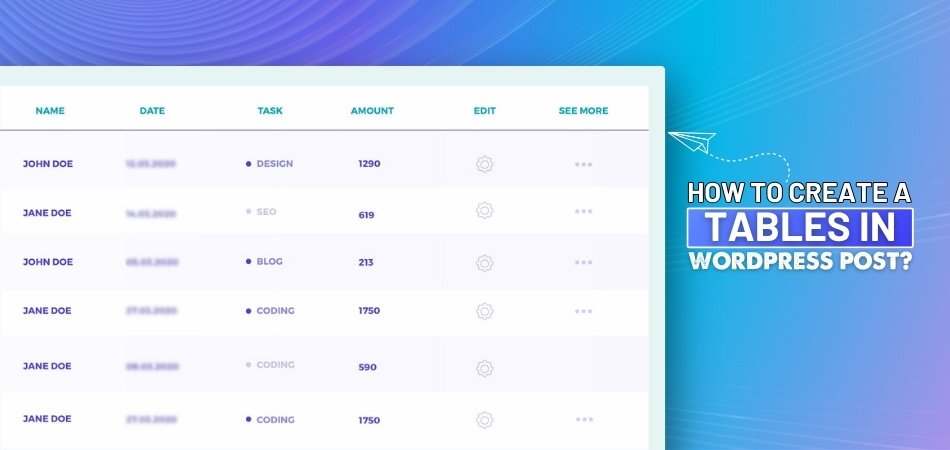
Tables are a great way to show information in a clear and simple way. If you want to share data or list items neatly on your website, tables can help. WordPress makes it easy to do this with just a few steps. Keep reading to learn how you can create a table in WordPress without any confusion:
Step 1: Open Your Page or Post
Log in to your WordPress account first. Go to your dashboard and click on the post or page where you want to add the table. Once the editor opens, you're ready to add content. Make sure you place your cursor where the table should appear. You can always move it later if needed.
Step 2: Try Different Options
Click the plus (+) icon to add a new block to your page or post. In the search bar, type "Table" and select the Table block from the list. WordPress will ask how many rows and columns you want—don’t worry, you can adjust this later. Or you can utilize the One Click Table tool. This tool comes with a pre-built template and advanced customization options, making the process even quicker and easier.
Step 3: Fill in Table Cells
Now that your table is added, click on each cell to type your text. You can add names, numbers, or any other information. If you make a mistake, just click on the cell again and fix it. It works just like a mini spreadsheet right inside your post.
Step 4: Change Table Size
If you need more rows or columns, that’s easy. Click on the table, and you’ll see options to add or remove rows and columns. Use the settings on the right side to make these changes. This helps you fit all your info without starting over.
Step 5: Style Your Table
Tables can look plain, but you can make them nicer. Use the toolbar at the top of the block to change text style, bold headings, or adjust alignment. You can also choose to make the table wide or full-width. This makes your table match your page’s style better.
Step 6: Use Table Header
If your table has a title row, turn on the "Header" option. This helps readers know what each column means. A header row also looks bolder and stands out from the rest of the table. It makes the table easier to read and understand.
Step 7: Save or Update Page
After adding and editing your table, don’t forget to save. Click the "Update" or "Publish" button on the top right. This makes your table visible on your website. If you're still editing, just click "Save draft" so you don’t lose your work.
Step 8: Preview Your Table
Before sharing the page, click on "Preview" to see how your table looks. This shows you how your table appears on desktop and mobile. It’s important to make sure your table adjusts well on all screen sizes, and that’s where WordPress responsive tables come in handy. If anything looks off, go back and make changes. It's always a good idea to check before posting.
Situations Where Tables Work Better Than Lists in WordPress
Tables are an efficient way to organize and present data. While lists are great for simple information, tables are better for structured content. Here are situations where tables should be your go-to choice for displaying data in WordPress:
- Comparing Multiple Data Points: Tables are ideal when you need to compare different pieces of data side by side. They make comparisons clearer and more organized.
- Displaying Complex Information: If your content has various categories or attributes, tables help organize it in a compact format. Lists can become confusing in such cases.
- Showcasing Data in Columns and Rows: Tables work best when you need to show data in both horizontal and vertical directions. Lists are not suitable for this setup.
- Displaying Large Datasets: Data can be presented in tables in a manageable way, even when there are large amounts of data. Lists can get long and hard to navigate with huge data.
- Organizing Pricing Information: For e-commerce or service websites, tables work best to show pricing and features. Lists can't present pricing with the same clarity.
- Displaying Timetables or Schedules: Tables are great for showing weekly schedules or event timetables. Lists can make such data harder to understand and follow.
- Presenting Statistical Information: Statistics or numbers that need to be compared easily can be displayed in tables. Lists are less efficient for showing numerical data.
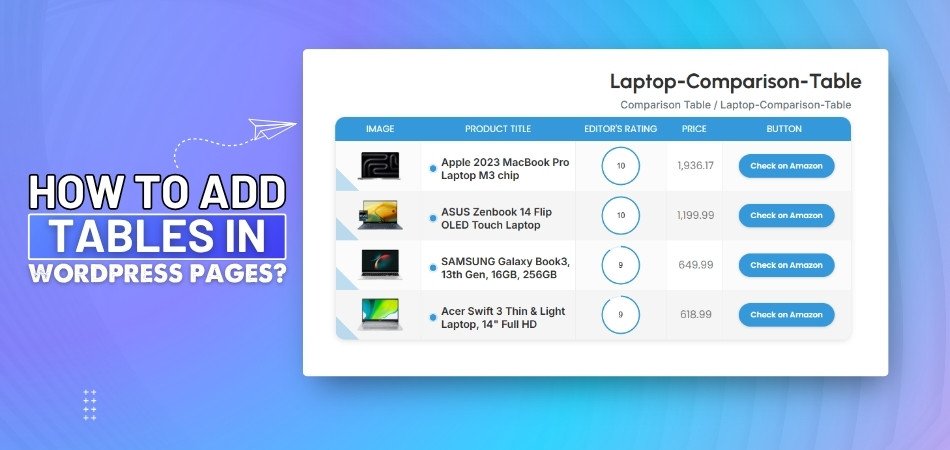
- Creating Product or Service Comparison Charts: Tables let you compare product features, prices, and specifications. Lists are less organized for comparing multiple products or services at once.
- Listing Data in a Structured Manner: With tables, you can organize data in a structured and easy-to-read way. Lists may look cluttered when handling structured information.
- Improving Accessibility of Information: Tables improve accessibility by aligning content in a structured way. Lists make it more difficult to track related information at a glance.
Manual vs. Plugin-Based Tables in WordPress
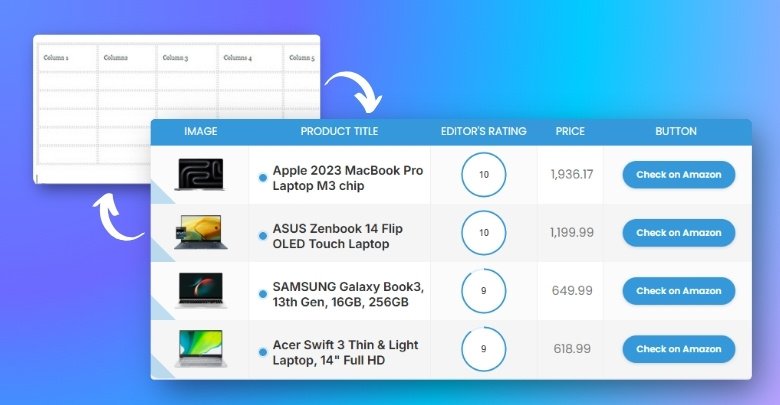
There are two common ways to add tables in WordPress. You can either create them by writing code or use a plugin. Both methods work well, but they’re different in how easy they are. Let’s see how they compare so you can choose the best one for your needs.
Setup and Usability
When you create an HTML Table in WordPress, you need to use code to build the structure manually. This means you must type the structure of the table yourself. It takes more time and needs some basic coding knowledge. Even one small mistake in the code can break the table. You have to be very careful and check everything. It’s better for those who are comfortable using code.
Using a plugin is much easier and faster. You don’t need to know any code to build a table. Most plugins offer a simple drag-and-drop editor. You just select the rows and columns, then type your content. It feels like using a basic spreadsheet. This is perfect if you want a quick and easy way to make tables.
Customization Options
Manual tables give you full control over how everything looks. You can change borders, colors, fonts, and more using CSS. But you must know how to write those style rules. It can take extra time to test how it looks on different screens. This method is flexible, but it’s not easy for everyone.
Plugin-based tables already have design options built in. You can choose colors, fonts, and layout styles without coding. The plugin shows you a preview while you work. You can change the design anytime with just a few clicks. This makes it much simpler for anyone to create a nice-looking table. It's fast and user-friendly.
Responsiveness and Mobile View
Manual tables don’t always look good on mobile screens. You may need to add extra code to make them adjust. Without that, the table can stretch too wide and become hard to read. It might also scroll awkwardly on phones. Fixing this takes time and testing. It's a bit tricky unless you know what you’re doing.
Most plugins support mobile-friendly or responsive tables by default. They automatically adjust the table layout to fit the screen. You don’t need to add any special code for this. Some plugins even let you choose what shows on smaller devices. This saves time and makes your website better for mobile users. It's a great option if you want less hassle.
Advanced Features and Updates
You can't easily add advanced features to a manual table. Things like search, filters, or sort options need extra code. Adding those features can take a lot of work and time. Also, editing the table later becomes harder. You’ll have to go back to the code every time. It’s not ideal if you update your tables often.
Plugins often come with useful built-in features. You can enable sorting, search bars, and filters with one click. These make your tables more interactive and user-friendly. Plugins also get regular updates from the developers. This means new features and better performance over time. It’s easier to manage and improve your tables this way.
Ease of Editing and Maintenance
Editing a manual table means going back into the code. You have to search for the right spot and change it carefully. If the table is large, it can be confusing and slow. Mistakes are easy to make, especially if you're not used to coding. You must double-check the table every time you edit it. This can take extra effort and patience.
With plugin-based tables, editing is much faster and easier. You can open the table in the plugin dashboard and make changes directly. It’s like editing a form or spreadsheet. Everything is clear and well-organized, so you won’t get lost. Changes save automatically and update across your site. This helps you keep your tables clean and up to date without stress.
Useful Features You Can Add to WordPress Tables
A table on a website can do much more than display boring data. With a few simple touches, you can make them helpful, fun, and easy to read. These features can really improve how people see your content. Here are some things you can do with them:
Sorting Option
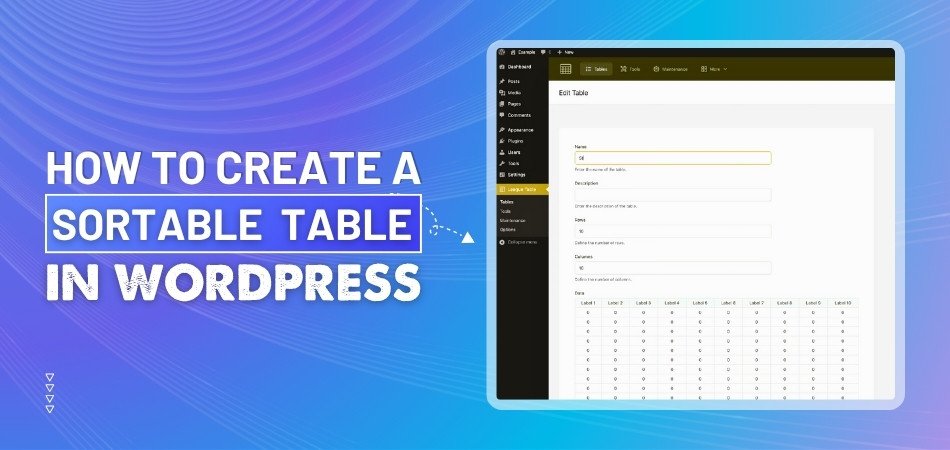
Adding a sorting option lets people arrange the table in the way they like. For example, they can click on a column to see items from lowest to highest or the other way around. It makes it easier to find what they are looking for. This is great for things like price lists, rankings, or dates. It helps people save time and keeps them on your site longer.
Search Bar
A search bar on your table is super useful, especially if your table has a lot of information. Instead of scrolling up and down, users can just type in what they need. It shows only the rows that match the search, which is very helpful. This makes the table feel more modern and smart. It also keeps things simple and clean.
Clickable Buttons
You can add buttons inside your table to take users to another page or product. These buttons can say things like “Buy Now” or “Read More.” This is useful for online shops or when you want people to take action. The buttons can be different colors to make them stand out. It makes your table more interactive and fun.
Images and Icons
Adding pictures or small icons can make your table look more alive. For example, you can show a product image next to its name. Or you can use icons like stars for ratings or check marks for features. This helps people understand things quickly without reading too much. It also makes your table more eye-catching.
Mobile Friendly
Tables need to work well on phones and tablets too. If a table is too wide, it can look messy on smaller screens. You can fix this by making your table mobile friendly. This means it adjusts itself to fit nicely on all screen sizes. It keeps your website looking neat everywhere.
Color and Style
Changing the colors and style of your table makes it look better. You can highlight important rows or columns with different colors. You can also choose fonts and borders that match your website. A well-designed table is easier to read and more fun to look at. It shows that you care about the small details.
Mistakes to Avoid When Adding Tables in WordPress
Tables can make your page look clean and easy to read if done right. But sometimes, small mistakes can make them look messy or confusing. A good-looking table can help people understand things faster. Let’s look at what you should avoid while working on them.
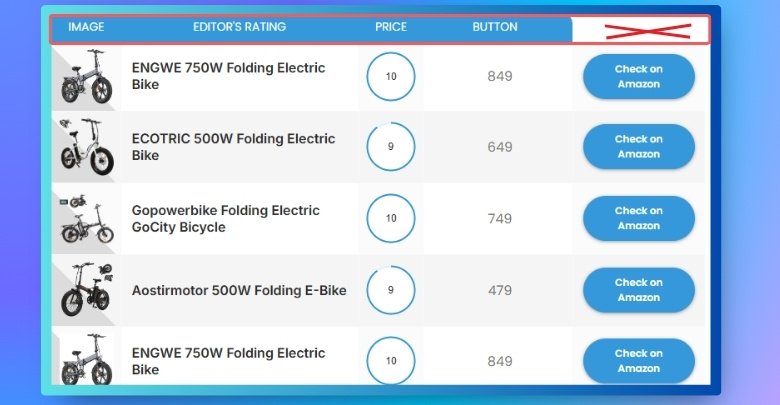
Missing Table Headers
Many people forget to add headers at the top of their tables. Headers help explain what each column is about. Without them, the table looks plain and harder to understand. Always label your rows or columns to keep things clear. A simple title row makes a big difference.
Using Too Many Columns
Trying to fit everything in one table can make it too wide. If there are too many columns, it looks messy on phones. Readers may need to scroll side to side, which isn’t fun. Keep your table short and to the point. Use more than one table if needed.
Not Making It Mobile-Friendly
Some tables work well on big screens but break on phones. If your table doesn’t adjust for small screens, people might skip it. Use a plugin or setting that makes your table responsive. This way, it changes shape to fit all devices. A clean mobile view is always better.
Skipping Table Previews
After adding tables to WordPress pages, some users forget to preview them before hitting publish, which can lead to layout problems. Without previewing, you might miss layout issues or extra spaces. Always check how the table looks before publishing. Make sure the rows and columns are lined up properly. A quick look can save you from mistakes later.
Ignoring Table Styles
Leaving the table plain can make it look dull. You don’t need fancy designs, but a little color or bold text helps. It guides the reader’s eyes and makes data stand out. Use styles that match your website’s look. A styled table is easier and more fun to read.
Entering Unclear Data
Even if the table looks good, unclear data can ruin it. Make sure your words or numbers are easy to understand. Don’t add too much text in one cell. Keep the content simple and short. Good content makes your table useful, not just pretty.
Frequently Asked Questions
If you're still curious about working with tables in WordPress, you're not alone. Many users have small doubts or face common issues while adding or customizing tables. This FAQ section answers those questions in a simple and helpful way. Keep reading to clear up anything you’re unsure about.
Can I Add a Table Without Using a Plugin?
Yes, you can add a table directly in WordPress using the built-in Table block. It lets you choose rows and columns without needing any plugin. You can then type your data into the cells. This is a good method for basic tables with simple content.
How Do I Make My Table Look More Attractive?
You can style your table using the block toolbar and settings. Change text alignment, use bold for headings, and apply background colors. These small design choices help the table match your site better. A neat layout also keeps your content easier to read.
Is There a Way to Add Links Inside Table Cells?
Yes, you can add links inside your table cells by highlighting the text and clicking the link icon. This works just like adding links in normal text blocks. It’s useful for directing readers to more info or related pages. Just don’t overuse links in one table.
Can I Use Emojis or Symbols in a Table?
Absolutely! Emojis or symbols can be added just like regular text. They help make your tables more fun and visually helpful. For example, you can use ✅ for features or ⭐ for ratings. Keep it simple so the table stays clean and useful.
How Do I Copy a Table From One Page to Another?
You can copy the entire table block and paste it into another page or post. Just click the three-dot menu and choose “Copy.” Then open the other page and paste it where needed. This saves time and helps you keep consistent formatting.
Can Tables Be Used Inside WordPress Widgets?
Yes, you can use tables inside text widgets or custom HTML widgets. You’ll need to paste HTML code for this to work. It’s a good way to display small bits of data in a sidebar or footer. Just keep the table simple for smaller spaces.
What Happens if I Delete a Table by Mistake?
If you delete a table by accident, you can press “Undo” or use the editor’s revision history. WordPress autosaves changes regularly. Just go to “Revisions” and choose an earlier version. Always save your draft before making big edits to avoid losing work.
Bottom Line
Creating tables in WordPress is a smart and simple way to share information clearly. Whether you're showing prices, comparing products, or organizing data, tables make your content easier to read. We looked at different ways to build them, including manual coding and plugin tools, each with its own benefits.
Knowing how to create a table in WordPress helps you decide the best method based on your needs and skills. You also learned how to style tables, make them mobile-friendly, and avoid common mistakes like using too many columns or skipping headers. With just a few steps and good choices, your tables can look clean and work well on all devices. Keep things simple, check your layout, and your website will look more organized.




_348.jpg)